Saturday, June 8, 2019

working remotely with git repos

The process we play in git is as follows:

The first time (or whenever he wants) the person clones the code of each project on his / her PC with the command:

git clone http://git.techasoft.gr/<organization>/<project>

If desired, it can download the entire project as a zip file from git.

 So he creates a local copy of the project file in git on his PC. There (in the local copy on his / her PC) he can open and edit the files, put his / her own pieces of code, correct somebody else's code, generally modify, add, delete files and folders. Once the work of the day has been completed in its local copy (on its PC), the following commands are run in the project folder:

git add.
git commit -m "<Message of the job done>"
git push

With these commands, the authorized user sends jobs back to git (modifications, additions, etc.) to his local copy (on his / her PC). These changes are integrated into the git project folder.

After the first time and if there is a local copy on our PC, in the project folder, BEFORE we start any work, we run the command:

git pull

so we can download the latest updates that are probably made by other users to the project file and start our work with the latest updates in our local copy (on our PC).

Saturday, April 20, 2019

Introduction to Web Development

Web Development Overview

There are two broad divisions of web development – front-end development (also called client-side development) and back-end development (also called server-side development).

Front-end development refers to constructing what a user sees when they load a web application – the content, design and how you interact with it. This is done with three codes – HTML, CSS and JavaScript.

HTML, short for Hyper Text Markup Language, is a special code for ‘marking up’ text in order to turn it into a web page. Every web page on the net is written in HTML, and it will form the backbone of any web application.

CSS, short for Cascading Style Sheets, is a code for setting style rules for the appearance of web pages. CSS handles the cosmetic side of the web.

Finally, JavaScript is a scripting language that’s widely used to add functionality and interactivity to web pages.

Back-end development controls what goes on behind the scenes of a web application. A back-end often uses a database to generate the front-end.

Back-end scripts are written in many different coding languages and frameworks, such as:

  •     PHP
  •     Ruby on Rails
  •     ASP.NET
  •     Perl
  •     Java
  •     Node.js
  •     Python
   
Without going into more detail, that’s really all there is to web development.

Friday, September 8, 2017

Bash-Snippets

For those who live in Terminal all day Bash-Snippets provides the following 12 useful tools (BASH scripts):
  1. currency – Currency converter.
  2. stocks – Provides certain Stock details.
  3. weather – Displays weather details of your place.
  4. crypt – Encrypt and decrypt files.
  5. movies – Search and display a movie details.
  6. taste – Recommendation engine that provides three similar items like the supplied item (The items can be books, music, artists, movies, and games etc).
  7. short – URL Shortner
  8. geo – Provides the details of wan, lan, router, dns, mac, and ip.
  9. cheat – Provides cheat-sheets for various Linux commands.
  10. ytview – Watch YouTube from Terminal.
  11. cloudup – A tool to backup your GitHub repositories to bitbucket.
  12. qrify – Turns the given string into a qr code.
You can run the scripts directly from commandline.

Wednesday, August 23, 2017

Web crawler

   Do you know what are they?  They are Hardware or Software?
   Well, a Web crawler, sometimes called a spider, is an Internet bot  that
systematically browses the World Wide Web, typically for the purpose
of Web indexing (web spidering).
Web search engines and some other sites use Web crawling or spidering
software to update their web content or indices of others sites' web
content. Web crawlers can copy all the pages they visit for later
processing by a search engine which indexes the downloaded pages so
the users can search much more efficiently.
   The web is like an ever-growing library with billions of books and
no central filing system. Software known as web crawlers is used to
discover publicly available webpages. Crawlers look at webpages and
follow links on those pages, much like you would if you were browsing
content on the web. They go from link to link and bring data about those
webpages back to servers.
  When the spider looked at an HTML page, it took note of two things:
  • The words within the page
  • Where the words were found
  Words occurring in the title, subtitles, meta tags and other positions
of relative importance were noted for special consideration during a
subsequent user search. The spider is built to index every significant
word on a page, leaving out the articles "a," "an" and "the."

Tuesday, August 22, 2017

Comparing popularity and pay scale of programming languages in 2017

   Some programming languages are more popular than others depending on how the developers use them to solve problems and build software. On the other hand, programming languages have different pay scale.
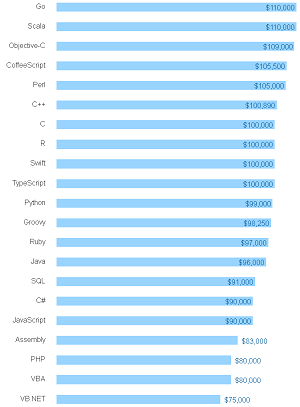
   The link between high pay and increased popularity is nowhere more apparent than with Go and Scala, topping the pay chart at $110,000:
  1. Go -- $110,000
  2. Scala -- $110,000
  3. Objective-C -- $109,000
  4. CoffeeScript -- $105,000
  5. Perl -- $105,000
  6. C++ -- $100,890
  7. R- $100,000
  8. Swift -- $100,000
  9. TypeScript -- $100,000
  10. Python -- $99,000

Top Paying Languages in the U.S.

Top Paying Languages in the U.S. (source: Stack Overflow)


Worldwide, the rankings are:
  1. Clojure -- $72,000
  2. Rust -- $65,714
  3. Elixir -- $65,000
  4. F# -- $64,516
  5. Go -- $64,516
  6. Perl -- $63,068
  7. Groovy -- $61,809
  8. Ruby -- $60,000
  9. Scala -- $60,000
  10. R -- $57,125

The thing is that some of the fastest growing technologies are 
also the highest paying languages.
The choice of  a programming language belongs to developers.
 

Sunday, August 13, 2017

iPhone 7

 
      The iPhone 7's overall design is similar to the iPhone 6S, but introduces new color options, water and dust resistance, a new capacitive, static home button, and removes the 3.5 mm headphone jack. The device's internal hardware also received upgrades, including a heterogeneous quad-core system-on-chip with improved system and graphics performance, and upgraded 12 megapixel rear-facing cameras with optical image stabilization on all models and an additional telephoto lens on the iPhone 7 Plus model to provide enhanced zoom capabilities.
       
      The Good Improved front and rear cameras -- now with optical image stabilization -- deliver much improved photos, especially in low light. Water resistant. A faster processor, plus slightly better battery life. More onboard storage than last year's models for the same price.
      The Bad No headphone jack (but there's a dongle and compatible wired headphones in the box). Click-free home button takes getting used to. Only the larger 7 Plus has the cool dual camera. Shiny jet-black version scratches easily.
      The Bottom Line The iPhone 7's notable camera, battery and water resistance improvements are worthwhile upgrades to a familiar phone design. But ask yourself if you really need an upgrade... and if the Plus might be a better choice.

Monday, July 31, 2017

20 Linux commands for sysadmins


      Basic Linux commands for troubleshooting, debug problems
      and resolve issues with your application.

  1.  curl
  2.  python -m json.tool / jq
  3.  ls
  4.  tail
  5.  cat
  6.  grep
  7.  ps
  8.  env
  9.  top
  10.  netstat
  11.  ip address
  12.  lsof
  13.  df
  14.  du
  15.  id
  16.  chmod
  17.  dig / nslookup
  18.  iptables
  19.  sestatus
  20.  history

Monday, June 12, 2017

Find Installed Repositories From Commandline In Linux

use this command to find the installed repositories in your DEB based system like Debian, Ubuntu, Linux Mint etc.
sudo grep -Erh ^deb /etc/apt/sources.list*

Run the following command to view the list of installed packages in DEB based systems
sudo apt-cache policy

Sunday, June 4, 2017

Install YouTube-DL on Linux (a tool to download videos from dailymotion, youtube etc)

We can easily install YouTube-DL on all the Linux distribution such as Debian, RHEL, Ubuntu, LinuxMint, CentOS, Fedora, suse, openSUSE, ArchLinux, Manjaro, Mageia, etc..,. by using below method.

[Download through curl]
# curl https://yt-dl.org/latest/youtube-dl -o /usr/local/bin/youtube-dl

or

[Download through wget]
# wget https://yt-dl.org/downloads/latest/youtube-dl -O /usr/local/bin/youtube-dl

[Set Executable permission]
# chmod a+rx /usr/local/bin/youtube-dl

[Upgrade to latest version]
# youtube-dl -U
How to use youtube-dl to download videos

[Syntax]
# youtube-dl [Video URL]

[example]
# youtube-dl https://www.youtube.com/watch?v=SjiwQxbol7I

[Sample video downloading from YouTube]
# youtube-dl https://www.youtube.com/watch?v=SjiwQxbol7I
[youtube] SjiwQxbol7I: Downloading webpage
[youtube] SjiwQxbol7I: Extracting video information
[download] Destination: Linux _ Unix - Find Out DNS IP Addresss Settings Tutorial-SjiwQxbol7I.f136.mp4
[download] 100% of 16.10MiB in 00:13
[download] Destination: Linux _ Unix - Find Out DNS IP Addresss Settings Tutorial-SjiwQxbol7I.f140.m4a
[download] 100% of 2.55MiB in 00:02
[ffmpeg] Merging formats into "Linux _ Unix - Find Out DNS IP Addresss Settings Tutorial-SjiwQxbol7I.mp4"
Deleting original file Linux _ Unix - Find Out DNS IP Addresss Settings Tutorial-SjiwQxbol7I.f136.mp4 (pass -k to keep)
Deleting original file Linux _ Unix - Find Out DNS IP Addresss Settings Tutorial-SjiwQxbol7I.f140.m4a (pass -k to keep)

Monday, May 29, 2017

use of command "mount" on Linux

To mount the root partition as read/write, become root user and type in a terminal the command:

mount -o remount,rw /

Friday, March 17, 2017

A guide to the Bash Terminal for Beginners

Below is a list of most common commands:

NAVIGATION

  • ls - list directory contents
  • pwd - print name of current/working directory
  • cd - change working directory
  • pushd/popd - put the working directory on a stack
  • file - determine the file type
  • locate - find files by name
  • updatedb - update database for locate
  • which - locate a command
  • history - display bash command history

GETTING HELP

  • whatis - display the on-line manual descriptions
  • apropos - search the manual page names and descriptions
  • man - an interface to the on-line reference manuals

WORKING WITH FILES

  • mkdir - create a directory/make directories
  • touch - change file timestamps/create empty files
  • cp - copy files and directories
  • mv - move (rename) files
  • rm - remove files or directories
  • rmdir - remove empty directories

TEXT FILES

  • cat - concatenate files and print on the standard output
  • more/less - file perusal filter for CRT viewing
  • nano - command line text editor

USERS

  • sudo - execute a command as the superuser
  • su - change user ID or become another user
  • users - print the usernames of users currently logged in
  • id - print real and effective user and group IDs

CHANGING FILE PERMISSIONS

  • chmod - change permissions of a file

KILLING PROGRAMS AND LOGGING OUT

  • Ctrl+C - kill a running command
  • killall - kill processes by name
  • exit - log out of bash

How to check if a package is installed on Linux

On RPM based system
on RPM based systems like Red Hat, Cent OS etc, we can use rpm query command like below :
rpm -qa | grep telnet
or 
rpm -q telnet

If system is configured with YUM then it can list all installed packages for you and you can grep out your desired package from it.
yum list installed | grep telnet

On APT based systems 
on APT based systems like Debian, Ubuntu etc, dpkg command can be used to verify if package is installed
dpkg -l | grep telnet

Friday, January 27, 2017

How to check the weather from Linux Terminal


Open a terminal and type the command:


curl http://wttr.in/your_city


example :   curl http://wttr.in/karditsa

How to reboot or shutdown from Linux Terminal


Open a terminal (Ctrl + Alt + T or super key + T) and type the following commands:


shutdown -h now     (to shutdown right now)


shutdown -r now      (to reboot)

Saturday, November 12, 2016

Internal Port Forwarding on Linux using the Firewall

Below are instructions for how to set up port forwarding on various Linux distributions using the firewall. The example uses port 5901 (default VNC port) as the destination and port 443 (default HTTPS port) as the source. This setup would let you connect to VNC over port 443 instead without changing the VNC configuration. 
Red Hat/CentOS 7 use firewalld as the default firewall application:
1)      Login to the root account
su -
2)      Install firewalld
yum install -y firewalld
3)      enable and start firewalld
systemctl enable firewalld
systemctl start firewalld
4)      add rule to allow port 22 for ssh
firewall-cmd --permanent --add-port=22/tcp
5)      add rule to forward port 443 to port 5901
firewall-cmd --permanent --add-forward-port=port=443:proto=tcp:toport=5901
6)      reload the firewall
firewall-cmd --reload
Ubuntu*/Debian systems can use ufw as a firewall for port
redirection:
 
1)      Login to the root account
su -
2)      Make sure ufw is installed and enabled
apt-get install -y ufw
update-rc.d ufw enable
service ufw start
3)      Edit the /etc/ufw/before.rules. Add the below lines to the top of the file and save the file
*nat
:PREROUTING ACCEPT [0:0]
-A PREROUTING -p tcp --dport 443 -j REDIRECT --to-port 5901
COMMIT
4)      Allow connections on the needed ports in ufw (note 22 is for ssh and just included so you can ssh back to the server)
ufw allow 22
ufw allow 443
ufw allow 5901
5)      Enable ufw
ufw enable
6)      Reboot the server
reboot
*Note that Ubuntu 16 uses systemd so use systemctl to start/enable the firewall instead of the service command.
Distribution agnostic solution:
This solution uses iptables which is built into the Linux Kernel so is available on all distributions of Linux. Modern Distributions ‘mask’ iptables so you will not be able to save this port forwarding solution past your current session (so you would need to re-enter it every time you start/reboot the server, even with the iptables-save command), but this way you can see how to accomplish this on any system. You can also un-mask iptables if you want to use it instead of firewalld or other firewall applications.
 Login as root then enter the below two commands
iptables -t nat -A PREROUTING -p tcp --dport 443 -j REDIRECT --to-port 5901

iptables-save
 A breakdown of the command so you can modify it for other services/ports if you find the need. 
  • “iptables” This is a firewall/routing application that is built into the Linux kernel so is on every Linux system. It is a very complicated program and is not very easy to learn (at least for me and in comparison to modern firewall applications). So instead most modern distributions come with a firewall application that ‘masks’ iptables and has easier to use/mange commands that then adjust the iptables rules for you. Firewalld used above is one that is a part of the systemd stack and is standard for Red Hat/CentOS.
  •  “-t nat” This says you’re modifying the nat ‘table’. There are multiple tables that iptables can modify. Nat is for when new connections are made.
  •  “-A PREROUTING” This says to append the rule to the end of the PREROUTING chain. Appending just means you’re adding it without overwriting any existing rules. The PREROUTING chain is a list of rules to apply before routing new connections. Since we want to forward from one port to a new one, we need the rule to take effect before it has been routed.
  •  “-p tcp” This says we’re looking for tcp packets. There’s a few different types you can choose from (tcp or udp being the most common). VNC is a tcp connection so that’s what we need for this example.
  •  “--dport 443” Packets with destination 443 are the target.
    You can change this if you want to connect using a different port on your computer.
  •  “-j REDIRECT” stands for “jump REDIRECT” which means the action is a REDIRECT. So when a packet is found that matches port 443/tcp we are going to redirect it
  •  “--to-port 5901” Pretty autological. We are going to redirect it to port 5901. If you want to redirect to different service you can change this to whatever the normal port for that service is.
  •  “iptables-save” This just saves the configuration so it will persist through a reboot of the server. 

Wednesday, October 5, 2016

How can I open a web page in App Inventor


Add ActivityStarter to the screen and configure its properties:
ActivityStarter1
Action:android.intent.action.VIEW
DataUri:http://example.com 
Leave the other properties empty.

enter image description here

On the same screen, configure the event handler of the button to call the activityStarter1.StartActivity:
enter image description here

By pressing the button, the web browser is opened with the page http://example.com

enter image description here